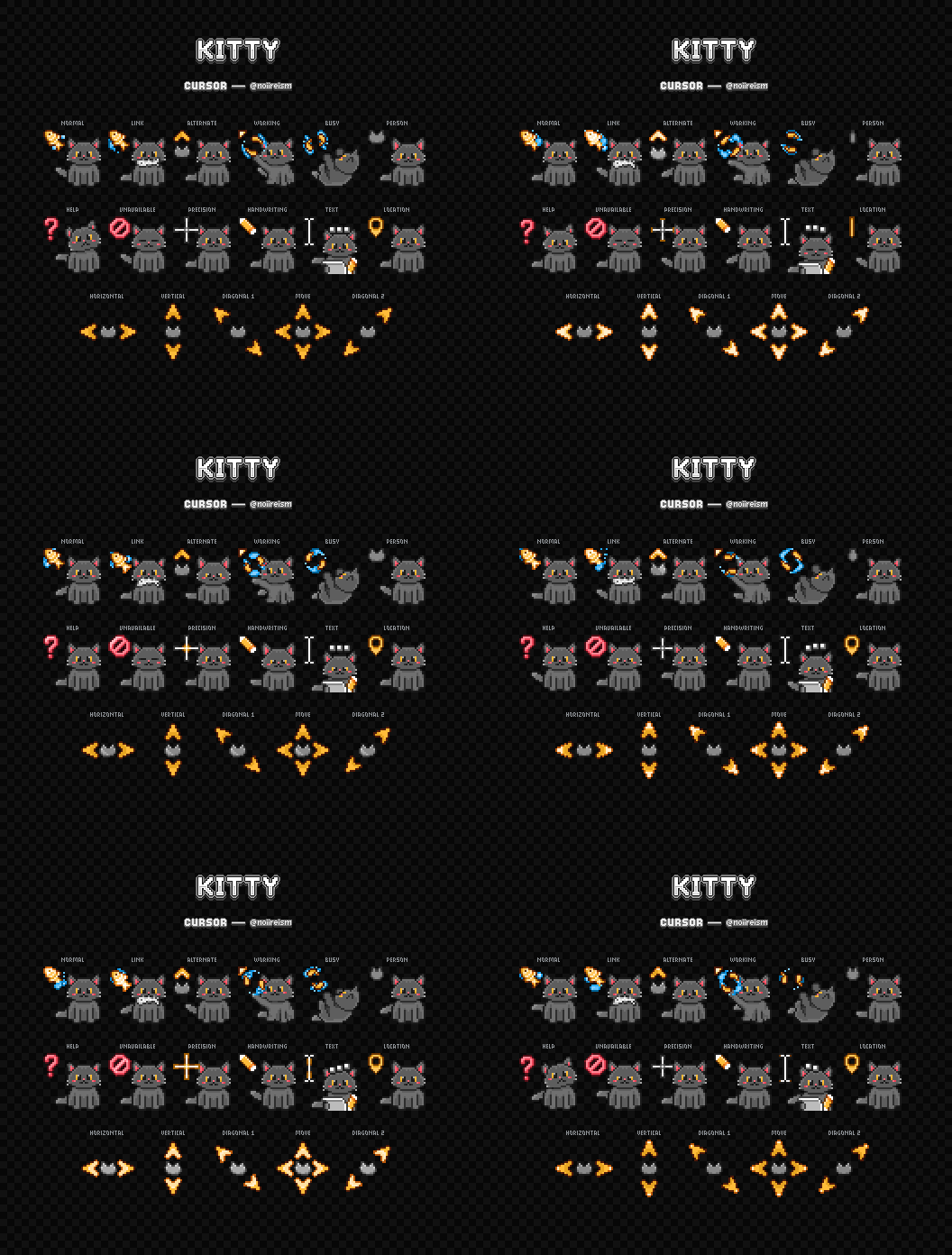
I’ve distro hopped quite a bit over the last few years. I’ve realized recently that I tend to gravitate toward KDE Plasma as a desktop environment, but I don’t take advantage of the customization as much as I could.
As I sit here looking through the KDE Plasma settings I’m curious to hear what are some favorite things to change in any DE. Please share what you like to do when you get a vanilla install. Do you have a favorite icon pack? Do you have a favorite theme? Any particular widgets that you would recommend?
I’m sure there is more out there than I can think of. Please share!
Edit: I can’t respond to everyone, but this is a great discussion. So many good suggestions and ideas. Keep them coming!
I don’t fiddle with my KDE much, but with every fresh install I always set the dock to auto-hide and fit-content.
this is gold, thanks for sharing
Amazing 🤩
Kind of a small thing, but I use an Ultrawide monitor with Sway, so I wrote a oneliner to swap to a higher or lower display scale depending on the workspace I’m on. I like to game in full rez while I’d write code or read with a HiDPI resolution that’s easier to squint at. Also adding hotkeys to change scaling on demand is nice
Great example of something I’d never think of. Thanks!
I have a bunch in my KDE:
-
Karousel for arranging windows
-
Klassy for window decorations/general theming
-
Panel Colorizer for customizing the panel/dock
-
Kvantum for general theming
-
And then a few general things like Wobbly Windows etc.
Panel Colorizer
🤔A KDE application with a name that uses C instead of K?
I know, it really stands out on that list lol
Oh awesome. Do Klassy and Kvantum overlap? Seems like they both modify the windows.
You’re not the first person to mention wobbly Windows. I definitely have to give it a try, sounds fun!
I’m not 100% sure, there might be a bit of overlap between them but I’ve never personally had any trouble running them side-by-side.
And yeah I love wobbly windows. I’m so used to them now that if I have to use Windows or something with non-wobbly windows it feels wrong now lol.
Oh yeah, another one I’ve recently discovered that looks interesting is Quickshell. I haven’t used it much yet though, I made a semi-functional panel with it and that’s as far as I got. But it looks like you can do a lot with it once you get the hang of it.
Quickshell looks interesting, basically building your own desktop environment. That’s probably the next step after I figure out what customization I want.
Thanks for the input! Much appreciated
-
I always install Guake. It’s a drop-down terminal emulator and it can be heavily configured with hotkeys. I have it pop open/close with one key and I can split the terminal horizontally or vertically as many times as I want with a couple other hotkeys.
It’s so ridiculously efficient (as a developer) that I can’t stand to not have it installed at this point.
Love my drop down terminal. I use Yakuake.
Once you get used to it, you’ll never go back haha
Do you prefer Guake over Yakuake because you use Gnome or other GTK based DE, because of specific features, or because it’s what you’re used to? Or something else?
I’ve only used Yakuake (and I’m on KDE) so I’m not familiar with Guake, but I’m curious
I’ll be real with you, it’s just familiarity. Whenever I’m setting up a new system, I just install Guake and throw my config file at it, so it feels the same as all of my other computers.
I’m sure that Yakuake is great and that all drop-down terminals probably have identical feature sets. However, I’m getting too old and impatient to distro/software hop. I just like my stuff to work and as long as it does, I don’t change it.
Concerning DE compatibility though: I run cinnamon on most of my machines and Guake has worked flawlessly for me for years on Cinnamon and Gnome. I’ve never been a fan of KDE though, so your milage may vary.
Perfectly valid
What’s better with a drop down terminal vs a normal terminal invoked with global short key?
It’s a genuine question, never heard about drop down terminal and looked it up. As I understand they are just normal terminal with a visual effect when they open. Am I missing something?
I’ve used a drop down terminal before and I find the position convenient. I can never lose it among other windows and it’s always on top. If I want to see below, I just slide it back.
Your point is correct, it is functionally nearly identical. Since the terminal is arguably the most important or most central piece of software, I do find it convenient to always have it in the same place and to give it priority over other windows.
This is definitely a matter of opinion, I do admit
It really has nothing to do with the opening animation, in fact, I’m not even sure if Guake has an animation. It’s about having a self contained terminal “window” where all of your terminals live and you can quickly navigate between them. Then you can hide said window just as fast as it arrived and get back to what you were doing. Keep in mind, these drop down terminals are not treated as traditional windows and are always-on-top.
The problem with traditional terminal windows is: let’s say that I have 4 terminals up for different tasks; it causes a little friction to my workflow when I have to deal with which window is which. That friction is just not present with a drop-down. Of course, you can have a traditional terminal emulator that supports tabs and splitting and set a hotkey to bring the one window into focus with an always-on-top flag; at that point though, you’ve just recreated another drop-down.
I’m super boring and really like vanilla gnome but without fail I always install Blur My Shell. It’s so pretty and it doesn’t mess with the paradigm at all. On my laptop I also have found Bluetooth Battery Meter to be super helpful since I use more wireless devices with it.
Wobbly windows!
I’m going to install wobbly windows as soon as I get home. So many people to keep suggesting it and it looks amazing lol
With KDE, you don’t even need to install anything. Just tick the box in settings.
Found the capslock user !
Haven’t had a vanilla install since KDE 5 came out, but the biggest thing I use far from the default install is Karousel
I’m a regular auto tiler, but tried a few alternatives such as Karousel to see how it works out. Its not really for me, but it worked fine and did what it should in my experience. So another recommendation if anyone wants a Niri like experience with Karousel addon. Another curious one is Mouse Tiler, which is a completely different method of manual tiling.
Mouse Tiler is nice
In KDE my favorite is an extension to the window manager, for auto tiling: https://codeberg.org/anametologin/Krohnkite or install it from Settings > Window Management > KWin Scripts, then click “Get New” and search for “Krohnkite” by anametologin. Development is a bit slow at the moment, but it does the job well.
I like that there are different layouts available, meaning different logic how a window should be placed and sized. I can switch between layouts on the fly. Every virtual desktop can have their own layout by standard, in example my fourth desktop is always untiled like a normal desktop. Exceptions to specific windows or applications to not tile them can be added too. So the usual stuff. It comes with some features not seen in other tiling window managers. In example I can convert any window into a “Dock”. A dock would then be always at the edge or screen, similar to the KDE bar; basically making the screen area to tile windows smaller. Super cool.
Edit: Rephrased a bit to make it more clear and added some more info.
I always used this but sometime in the past few months, it started ha ing a bug where I can no longer click on 90% of the title bar (vertical direction) and I have to until and retile all windows open to be able to close anything. Very annoying and I am about at the point to stop using it lol.
There was a time when it was indeed very buggy. That was around the time when it transitioned to Wayland, and also when KDE 5 changed to KDE 6. Nowadays for me it is solid (with an exception of fullscreen issue with RetroArch). Granted I don’t have any title bars, so maybe I’m missing out on that bug. Looking at the Issues list, I could not find anything related to your description. So it doesn’t seem to be common problem. Also a few days ago an alpha version of the next version is released, so at least we can update soon. Maybe it works better then.
Papirus icons, Phinger cursors,
$HOME/.config/xfce4copied from previous install.Both of those look nice. I’ll try them out
“Indulge in nostalgia with useless 3D effects.” Is all I needed to read on that page ❤️
KDE here.
Icons: Candy; Plasma Style Sweet; Window decs : sweet-dark; Autohide Icons-only task manager at the bottom (RIP Latte :( ), always on top panel for my secondary monitor, autohide top panel on the primary.
I actually use and like Activities, I have General, Game, Code, System, Work all with their own workflows and pinned apps etc.
I lean pretty heavily on mouse gestures using logid with a MxMaster 3. Switch activities, control music, switch apps etc.
I have the gesture button pop up Kando which can do ALL sorts of things, basically I can do 90+% of things super fast without touching the keyboard. Not that I dislike the keyboard, using it now, but sometimes I don’t want to bother.
Top centre of panel has a command output widget with cat CurrentShort.txt which pulls local temp/humidity from a couple of sensors via HomeAssistant. Hover has weather scraped from Aus BoM and a bunch of other informative stuff and if I click it it runs a script with
kdialog --geometry 1024x1024 --textbox /dev/stdin <<< $(cat CurrentInfo.txt)which pops up a dialog with a weeks forecast among other things. I also use the command output widget for cpu/gpu temps and fan speeds to the left of the status bar, which is on the right.
The Wunderground widget is pretty cool too, find local weather stations and pop them in a panel.
kde plasma
Mouse: increase pointer speed to 0.8
Sound: change volume increment to 2%
Sound: mute notification sounds
Colours:
Breeze Dark
Material Black Blueberry Icons
Oxygen Neon Cursors
KDE-Story-Blue-SDDM (login screen) with a different background
Screen Locking:
Never
Power Management:
When inactive: Do Nothing
Dim automatically: Never
Turn off screen: Never
Session:
Ask for confirmation: Deselect
On login: Start with an empty session
Panel:
Long date
Date beside time
Modify system tray settings to show what I want
Widgets:
On panel:
Thermal monitor (1 for cpu, 1 for gpu)
Memory Usage
Desktop Folder
Folder View (set to a folder where I keep docs and spreadsheets)
Wastebin
Shutdown or Switch
Love this. Thanks for the breakdown! Some of these options are things that I only set if I happen to pass them. I don’t always comb through every option during a fresh install
I have distrohopped a couple of times, so the settings only take me a minute. It is possibly what drew me to kde plasma in the first place, the settings are very accessible.
Planning on going back to xfce though, since they are (I assume) much less likely to embrace ai crap.
I do love the idea that a desktop environment covers most of what you interact with. I feel like DE and package manager are like 90% of what makes me choose a distro
basically the same for me, although after a while (for me at least) the package manager gui is just mainly for updates. I rarely add new programs.
The operating system isn’t meant to be the feature/focus, it is just meant to work, and stay out of the way. Choosing a de you like is the best way to start distrohopping/finding a distro.
What do you use for the thermal monitor?
This one:
Thanks! I’ll check that out, been needing a good temp monitor
You may experience issues with the gpu side of things, details are in the comments on the page I linked (its a recent, and hopefully temporary issue).
The colour scheme. White screens are one of the things that trigger my migraines.
This in turn leads to my modifying several other visual aspects of the desktop, because a lot of widget set themes come with scrollbars that don’t work well with really dark colours. I also turn animations and automagic snapping and desktop navigation facilities off, because I find them annoying. Kindly behave like it’s 1999 and don’t do anything I don’t explicitly tell you to do, Mr. Desktop.
And then I embed a conky instance in the second desktop for general monitoring—CPU activity (composite and by thread), memory in use, disk space, network usage, temperatures, fan levels, and greediest processes all conveniently in a single view that doesn’t require me figuring out what I did with the window.
If you don’t use it already, be sure to check out Dark Reader. As someone who also suffers from screen induced migraines, this thing has been a game changer.
I chose a slightly different way of achieving what that extension does, and long ago set my browser not to allow websites to choose their own colours. That does partially break a few sites that don’t handle their images properly, but overall it’s workable and gives me white on a slightly different dark colour for each browser profile.
Interesting method, I didn’t even know that was possible. Would you mind sharing how you achieved that? I would be interested in comparing the two. Dark Reader does add some overhead which is noticeable on my older machines
It’s a normal browser setting left over from the early days of the Internet, when most pages did little or no theming (or did it badly). My primary browser is Pale Moon, which exposes the setting as a dropdown under Preferences > Content > General > Colors. Firefox also exposed the setting on its settings page the last time I checked, although it may be a checkbox there. It’s also a boolean in about:config,
browser.display.use_document_colors.Chrome-family browsers may not have such a setting, unfortunately. The only one I keep handy is Vivaldi, which doesn’t have it but does have a “Force a dark theme on all websites” checkbox (under Settings > Appearance > Website Appearance).
Totally agree on dark themes, my eyes can’t take bright white screens.
The performance monitor is a nice touch, I think I’ll include that. Thanks!